- Developer
- Google LLC
- Installs
- 10B+
- Downloads
- 0
- Views
- 1
- Updated
- Nov 6, 2026
Screenshots
About YouTube
YouTube App Complete Guide: Home, Subscriptions, Premium, YouTube Kids and Creator Tools Explained
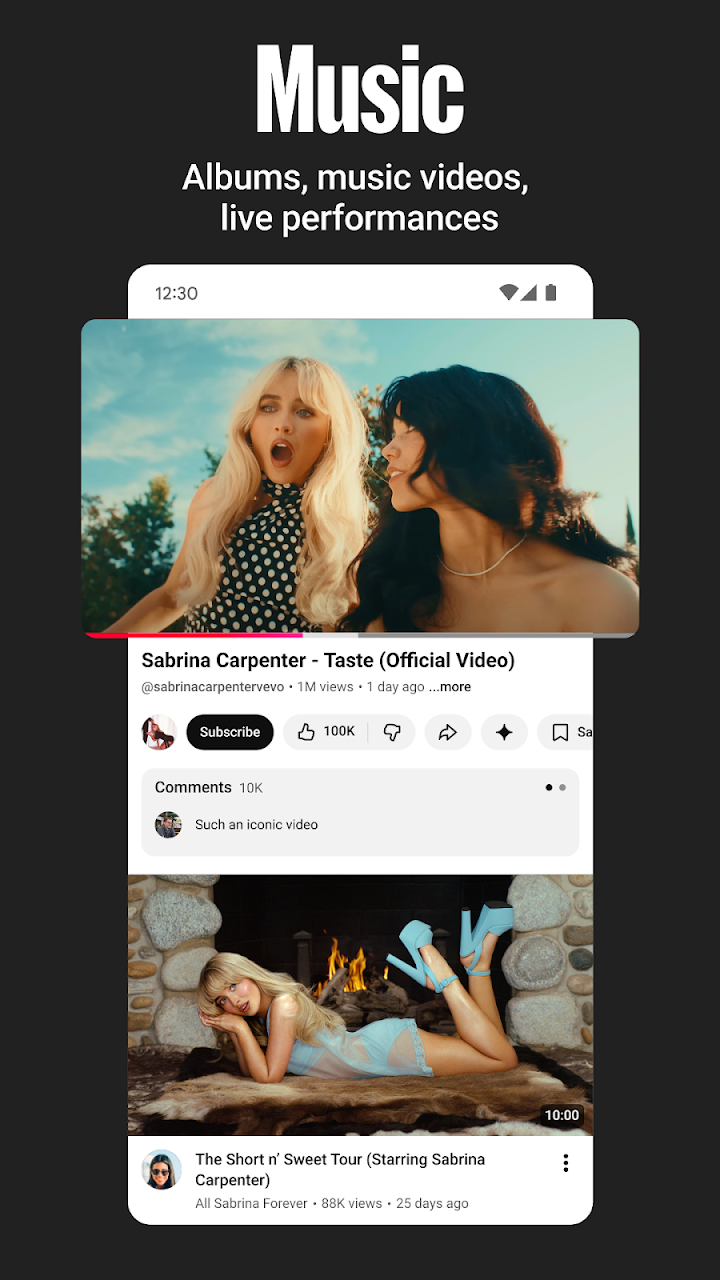
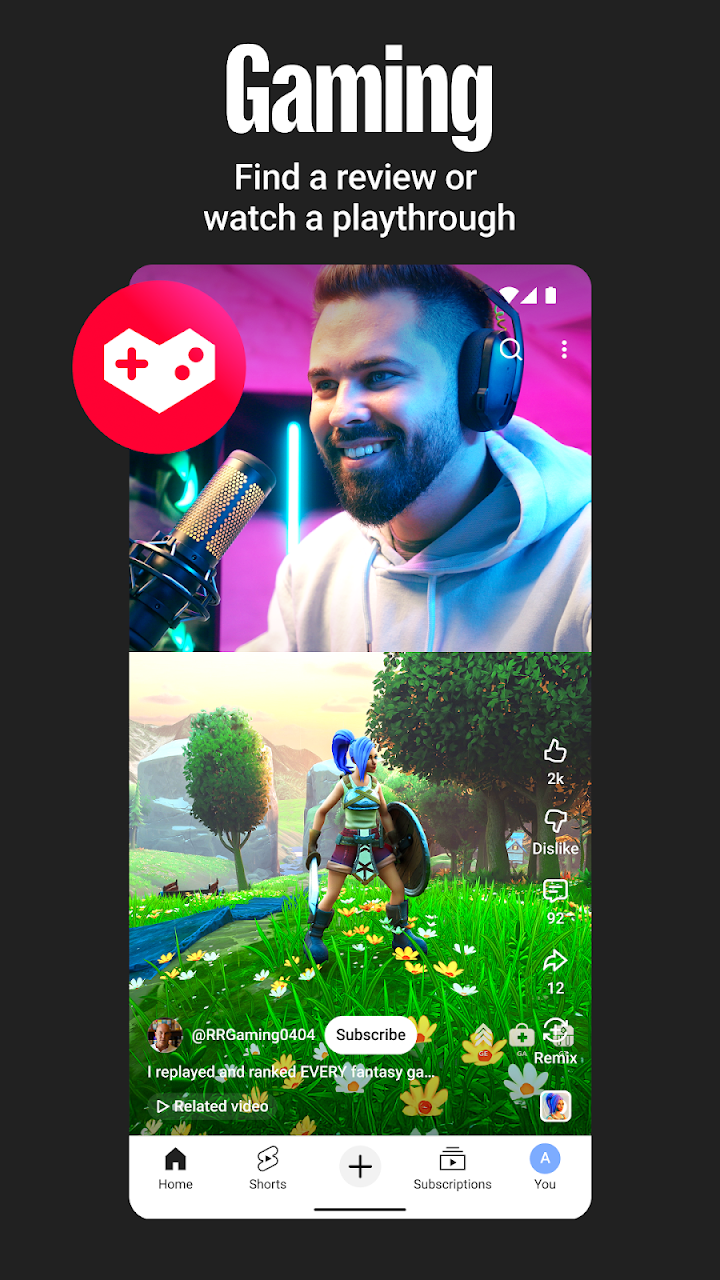
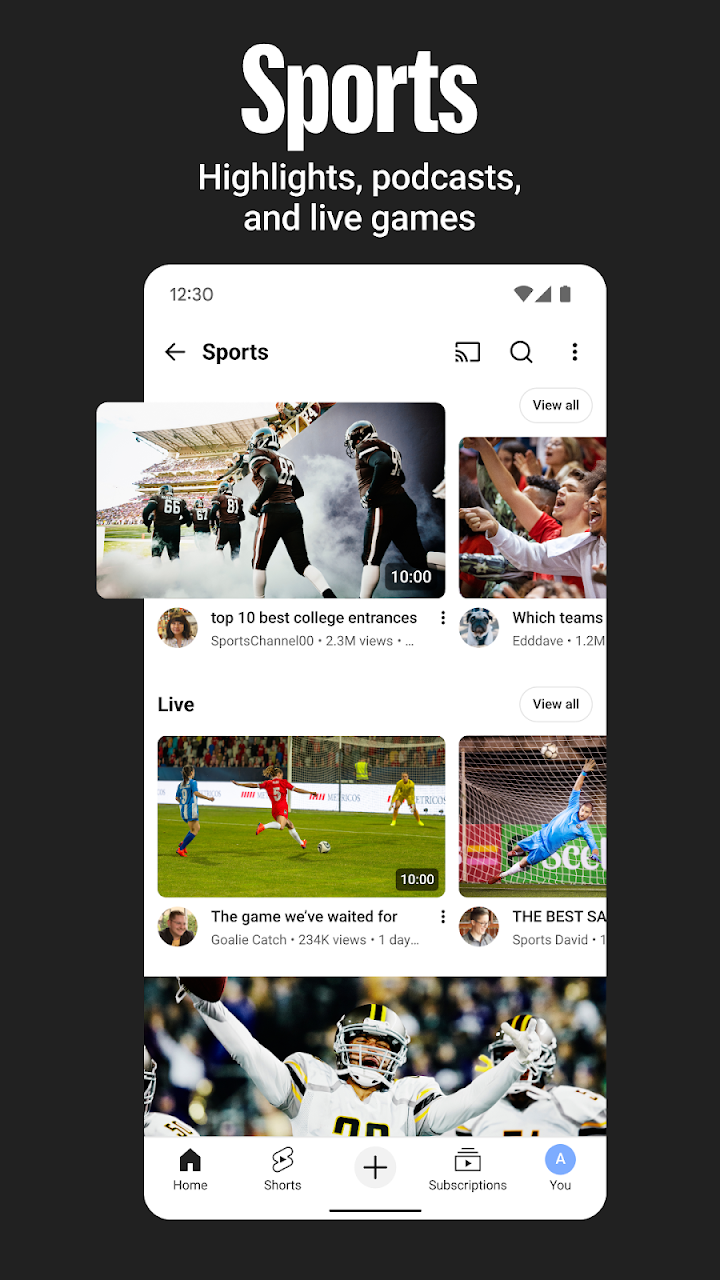
YouTube is the official app for Android phones and tablets, and it is where most people watch the world's video. From the hottest music videos to what is popular in gaming, fashion, beauty, news and learning, the app is built around the same idea: see what the world is watching, subscribe to channels you love, and watch on any device.
What makes the app confusing is not the videos — it is everything layered around them. There is a Home feed, a Subscriptions feed, a Library, an Explore section that only exists in some countries, community posts and live streams, creator tools, YouTube Kids and supervised accounts, channel memberships, and two separate paid tiers that people routinely mix up.
This guide explains what each part of the app actually does, how the free experience differs from Premium in practice, which features are region-restricted, how the family options work, and which settings are worth changing on day one. It is written for people who have installed the app and want to use it deliberately rather than passively.
YouTube at a Glance
| Feature | Details |
|---|---|
| Type | Video streaming, community and creator platform |
| Developer | YouTube (Google) |
| Cost | Free with advertising; optional Premium subscription |
| Core sections | Home, Subscriptions, Library, Explore (select countries) |
| Community features | Posts, Stories, Premieres, Live streams, comments |
| Creator tools | Record, upload, go live directly from the app |
| Family options | YouTube Kids app or a parent-supervised experience on YouTube |
| Paid add-ons | YouTube Premium (includes YouTube Music Premium), channel memberships |
| Offline downloads | Premium only, and not in every region |
| Platforms | Android, iOS, web, TV, consoles and more |
The Four Sections You Actually Use
The mobile app is organised around four destinations, and understanding them removes most of the early confusion. Everything else is either a settings screen or a feature that lives inside one of these.
| Section | What It Shows | Best For |
|---|---|---|
| Home | Personal recommendations based on your watch history and engagement | Discovering something new without a goal |
| Subscriptions | The latest uploads from channels you follow | Keeping up with creators you already like |
| Library | Watch history, liked videos, Watch Later, playlists and downloads | Finding something you saved or watched before |
| Explore | Trending topics and popular content, in select countries | Seeing what is popular broadly rather than personally |
Home and the Recommendation Problem
Home is driven by personal recommendations, and those recommendations are shaped almost entirely by what you watch and how long you watch it. This has a practical consequence that most users never exploit: the feed is trainable.
If Home is full of content you do not want, the fix is not a setting — it is behaviour. Removing a video from your watch history, choosing "Not interested" on recommendations you do not want, and deliberately watching the kind of content you do want changes the feed within a few days.
Practical tip: pausing watch history stops the feed from learning temporarily, which is useful if someone else borrows your phone. Clearing history resets recommendations more aggressively, but it also wipes useful history.
Subscriptions and the Chronological Order Question
Subscriptions shows the latest uploads from channels you follow. The key thing to understand is that it is not a perfect chronological inbox — the app may surface notifications and highlights alongside the feed.
If you subscribe to many channels, the feed becomes overwhelming quickly. Two habits help:
- Turn on notifications only for a handful of channels you genuinely do not want to miss. Notifications for everything are notifications for nothing.
- Use the bell selectively. "All" notifications for a channel that posts daily is a fast route to notification fatigue.
Library
The Library is where videos you have watched, liked and saved for later live. It includes watch history, liked videos, Watch Later, your playlists and any downloaded content.
The Watch Later trap: Watch Later is easy to add to and hard to empty. It becomes useless once it contains dozens of videos you added "for later" and never revisited. Pruning it periodically is worth the effort.
Explore and Trending
Explore helps you stay up to date on what is popular in music, gaming, beauty, news, learning and more, and shows what is trending on YouTube and around the world. It also highlights creators, gamers and artists on the rise.
Important regional caveat: Explore, trending topics and the "on the rise" creator features are available only in select countries. If they appear missing, this is a regional limitation rather than a bug or a settings problem.
Community Features: More Than Just Videos
YouTube has become a community platform as much as a video library, and the app reflects that. Channels can communicate with their audience in several ways, and viewers can participate directly.
| Feature | What It Is | Where You See It |
|---|---|---|
| Posts | Text, image and poll updates from a creator | On the channel's Community tab |
| Stories | Short, temporary updates from creators | In the app's Stories shelf or channel page |
| Premieres | A scheduled video launch with live chat before and during playback | Channel page and notifications |
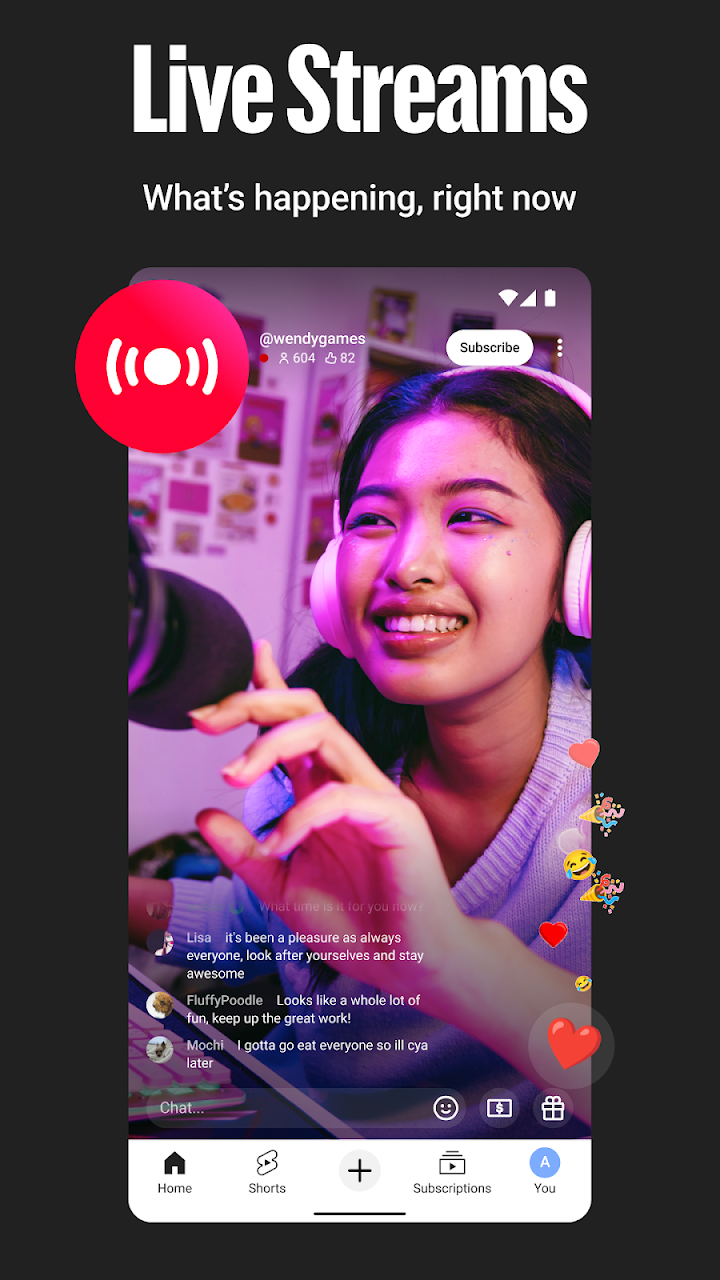
| Live streams | Real-time broadcast with live chat | Channel page, subscriptions feed, notifications |
| Comments | Public discussion under videos | Below the player |
Comments and live chat are the most direct way to interact with creators and other viewers. They are also the part of YouTube with the most moderation issues, and the app provides tools to manage this — including the ability to pause your watch history, hide comments from specific users, and report content.
Live chat etiquette: live chat moves fast and is not a good place for long questions. Most creators answer short, clear questions and ignore paragraphs. If you want a substantive reply, commenting on a regular video is usually more effective.
Creating Content From Your Phone
The app lets you create or upload your own videos directly, and go live from the phone itself. This is genuinely capable now — a phone, decent light and reasonable audio is enough to start a channel.
What the mobile app supports:
- Recording directly in the app
- Uploading existing videos from your device
- Live streaming from the app, with live chat
- Basic editing — trimming, adding details, selecting thumbnails
- Channel management — titles, descriptions, visibility, comments settings
Practical note for new creators: audio quality matters more than video quality for retention. A phone with clean audio in a quiet room outperforms a high-end camera with echo and background noise. If you are starting out, spend your first effort on a quiet space and a cheap clip-on microphone rather than on resolution.
Live streaming from mobile may require meeting eligibility requirements, such as subscriber count and account verification, depending on your region and account standing. If the option is not available, those requirements are usually the reason.
YouTube Kids and Supervised Accounts
Every family has its own approach to online video, and YouTube offers two distinct options that are frequently confused with each other.
| Option | What It Is | Best For |
|---|---|---|
| YouTube Kids app | A separate app with a curated, child-focused catalogue and its own controls | Younger children who should not access general YouTube |
| Supervised experience on YouTube | A parent-managed account on the main YouTube app with content settings | Older children who need a middle ground |
The supervised option is set up through the family management page at youtube.com/myfamily, and it lets a parent choose content settings for an account that uses the main YouTube app. This is a meaningfully different product from YouTube Kids — the videos come from the general catalogue, filtered by the chosen settings.
Both options are available in select countries, so check availability in your region before relying on either.
Practical advice for parents: no filter is perfect. The supervised experience reduces risk rather than eliminating it, and parental supervision plus regular conversation is more effective than any setting. Review the chosen content setting periodically as the child gets older.
Channel Memberships: Supporting Creators Directly
Channel memberships are paid monthly subscriptions to individual creators, available in select countries. They are separate from YouTube Premium — you are paying the creator, not YouTube, for access to perks on their channel.
| What You Get | Typical Examples |
|---|---|
| Exclusive perks | Members-only videos, posts, live streams, custom emoji |
| Community access | Members-only community spaces or early access |
| Loyalty badge | A badge next to your username in comments and live chat |
| Recognition | Highlighted status within the channel's community |
Memberships are per-channel and per-month, and what you receive varies entirely by creator. Some channels offer substantial exclusive content; others offer little beyond a badge. It is worth checking what a specific membership includes before subscribing rather than assuming all memberships are equivalent.
YouTube Premium: What It Actually Changes
Premium is YouTube's paid subscription, available in select countries. It is the most commonly misunderstood part of the app, partly because it overlaps with YouTube Music Premium.
| Feature | Free | Premium |
|---|---|---|
| Advertisements | Before, during and after videos | No ads on YouTube |
| Background play | Playback stops when you leave the app or lock the screen | Audio continues in the background and with the screen locked |
| Offline downloads | Not available | Save videos for flights, commutes and low-signal areas |
| YouTube Music Premium | Not included | Included as part of your benefits |
| Picture-in-picture | Limited / varies by region and device | Generally available |
Background play is the feature that drives most subscriptions. Being unable to lock your phone and keep listening is the single most common reason people upgrade, especially for music, podcasts, lectures and long-form interviews.
Downloads are region-dependent. Offline saving is not available everywhere. If you are subscribing specifically for downloads, confirm it is supported in your country before paying.
Premium includes YouTube Music Premium, which is a substantial part of the value if you also pay for a music service. If you already subscribe to a dedicated music app, it is worth comparing what you would actually use before adding both to your budget.
Device Support and Watching Across Screens
| Device | Strengths | Limitations |
|---|---|---|
| Phone | Everything, including recording and going live | Small screen for long-form viewing |
| Tablet | Better for long videos and reading comments | Same feature set as phone |
| Desktop / web | Best for managing subscriptions, playlists and channel settings | No mobile-specific creation flow |
| TV app | Living room viewing, remote-friendly | Comments and community features are limited |
| Games consoles | Casual viewing on a large screen | Fewer features than the TV or mobile app |
Your account syncs across devices, so watch history, subscriptions, Watch Later and playlists follow you. This is usually convenient, and occasionally awkward — watching something on a shared TV can influence recommendations on your personal phone.
The fix: pause watch history when watching on a shared device, then resume it afterwards. It prevents the shared session from polluting your personal recommendations.
Settings Worth Changing on Day One
| Setting | What It Controls | Recommendation |
|---|---|---|
| Watch history | Whether your viewing is recorded and used for recommendations | Keep on if you want good recommendations; pause when using shared devices |
| Autoplay next video | Whether the next video starts automatically | Turn off if you lose too much time to autoplay |
| Restricted Mode | Filters mature content | On for shared family devices |
| Notifications | Alerts from subscribed channels | Limit to a few channels, not all |
| Data-saving / lower quality on mobile | Reduces mobile data usage | Enable if you watch on mobile data regularly |
| Playback speed | Playback rate for videos | Useful for lectures, tutorials and long interviews |
| Double-tap to seek | Skips forward or back on double-tap | Enable — it saves a lot of scrubbing |
Autoplay is the most consequential setting on this list. It is the single biggest reason people watch far more than they intended. Turning it off does not stop you watching more — it just makes continuing a decision rather than a default.
Tips for Getting More Out of the App
- Train Home deliberately. Use "Not interested" and watch what you actually want. The feed responds within days.
- Subscribe selectively. A subscription list of 40 channels is not a feed, it is a second Explore page.
- Use the bell sparingly. Notifications for everything means notifications for nothing.
- Prune Watch Later. If it has become a graveyard, clear it and start again with a short, realistic list.
- Turn off autoplay when you are short on time. It is the difference between a 10-minute break and an hour.
- Use playback speed for tutorials and lectures. 1.25x to 1.5x is comfortable for most speaking rates.
- Pause history on shared devices. It keeps your personal recommendations intact.
- Use Restricted Mode on family tablets. It is not perfect, but it is better than nothing.
- Check your data usage. Video is the most data-hungry thing most people do on a phone; the quality setting matters.
- Consider Premium only if you need background play or downloads. Those are the features people actually subscribe for.
Who Should Use YouTube?
YouTube's free tier is available to almost anyone, so the practical questions are how to use it deliberately and whether Premium is worth paying for.
YouTube is a strong fit if you:
- Watch a mix of entertainment, learning and news content
- Follow creators and want to keep up with their uploads
- Want to create or upload your own videos
- Listen to long-form content and want it to continue in the background
- Need offline viewing for commuting or travel
It may not be the right choice if you:
- Dislike advertising and do not want to pay to remove it
- Find recommendation feeds difficult to control
- Want a purely curated, editorially selected catalogue
- Need guaranteed background play without a subscription
- Are setting up a device for a young child without supervision options
For most people, the sensible path is to use the free app with autoplay off and notifications limited, and to upgrade only when a specific limitation — usually background play or downloads — starts costing you something.
Frequently Asked Questions
Is the YouTube app free?
Yes. The app is free to download and use, with advertising before and during videos. YouTube Premium is an optional paid subscription that removes ads and adds background play, offline downloads and YouTube Music Premium.
What is the difference between Home, Subscriptions and Explore?
Home shows personal recommendations based on your viewing. Subscriptions shows the latest uploads from channels you follow. Explore shows what is popular and trending, and is available only in select countries.
Where are my liked videos and Watch Later?
They are in the Library tab, along with your watch history, playlists and any downloaded videos.
What does YouTube Premium include?
Premium removes ads on YouTube, allows videos to keep playing in the background or with the screen locked, enables offline downloads where supported, and includes YouTube Music Premium as part of the benefits. Availability varies by country.
Can I listen to YouTube with the screen off without Premium?
In most regions, background play and locked-screen audio require Premium. There are some regional and promotional exceptions, but they should not be relied on.
Are downloads available everywhere?
No. Offline downloads are part of Premium but are only available in select countries. Check whether downloads are supported in your region before subscribing for that reason.
Can I upload videos from my phone?
Yes. The app lets you record or upload videos directly, and you can go live from the app. Live streaming may require meeting eligibility requirements such as account verification and subscriber thresholds.
What are channel memberships?
Channel memberships are paid monthly subscriptions to individual creators, available in select countries. They give access to channel-specific perks such as members-only videos, posts and live streams, plus a loyalty badge in comments and live chat.
Are memberships the same as Premium?
No. Premium is a subscription to YouTube itself. Memberships are separate payments to individual creators and do not remove ads across the platform.
What is the difference between YouTube Kids and a supervised account?
YouTube Kids is a separate app with a curated, child-focused catalogue and its own parental controls. A supervised account uses the main YouTube app with parent-selected content settings, managed through youtube.com/myfamily. Both are available in select countries.
Why can't I see trending or Explore?
Explore, trending topics and the "on the rise" creator features are available only in select countries. If they are missing, it is a regional limitation rather than a settings issue.
How do I stop recommendations I don't want?
Use the "Not interested" option on recommended videos, remove individual items from your watch history, and deliberately watch the kind of content you do want. Pausing watch history temporarily stops the feed from learning.
Can I watch YouTube on a TV or console?
Yes. YouTube is available on smart TVs, streaming devices and games consoles, though community and creation features are more limited than on the mobile or desktop app.
Does YouTube have ads on live streams?
Advertising can appear on live streams and Premieres, depending on the channel and the region. Premium removes YouTube's ads but does not remove sponsored segments included by the creator within the video itself.
How do I control data usage?
Use the video quality and data-saving settings in the app, and download content over Wi-Fi where Premium downloads are available. Video is one of the most data-intensive activities on a phone, so the quality setting has a large effect.
Download and Availability
YouTube is a third-party application developed by YouTube (Google) and distributed through the official app stores. Feature availability, pricing for Premium, channel memberships, Explore and family options vary by country and device.
Before subscribing, check the official listing and YouTube's own support pages for the current options in your region.
Official Resources:
- Official Website: YouTube Official Website
- Premium: YouTube Premium
- Family Management: YouTube Family Options
- Help Centre: YouTube Help
Final Thoughts
YouTube's strength is scale, and its weakness is the same thing. There is almost always something worth watching, which is exactly why the app benefits from being configured rather than used passively. Turning off autoplay, limiting notifications and training the Home feed takes ten minutes and changes how the app feels.
The paid features are genuinely useful but narrower than the marketing implies. Background play and offline downloads are what most people actually subscribe for, and both are region-dependent in ways worth checking before paying. Channel memberships are a separate decision entirely — they support a specific creator rather than improving the platform generally.
Use the free app properly first. If you find yourself wanting audio with the screen locked, or videos saved for a flight, that is the point at which Premium starts to make sense.
Voyanta is an independent app discovery platform and is not affiliated with or endorsed by YouTube or Google. All YouTube trademarks and related intellectual property belong to their respective owners.