
- Developer
- WhatsApp LLC
- Installs
- 10B+
- Downloads
- 0
- Views
- 1
- Updated
- Nov 6, 2026
Screenshots
About WhatsApp
WhatsApp Complete Guide: End-to-End Encryption, Calls, Groups, Status and Privacy Settings Explained
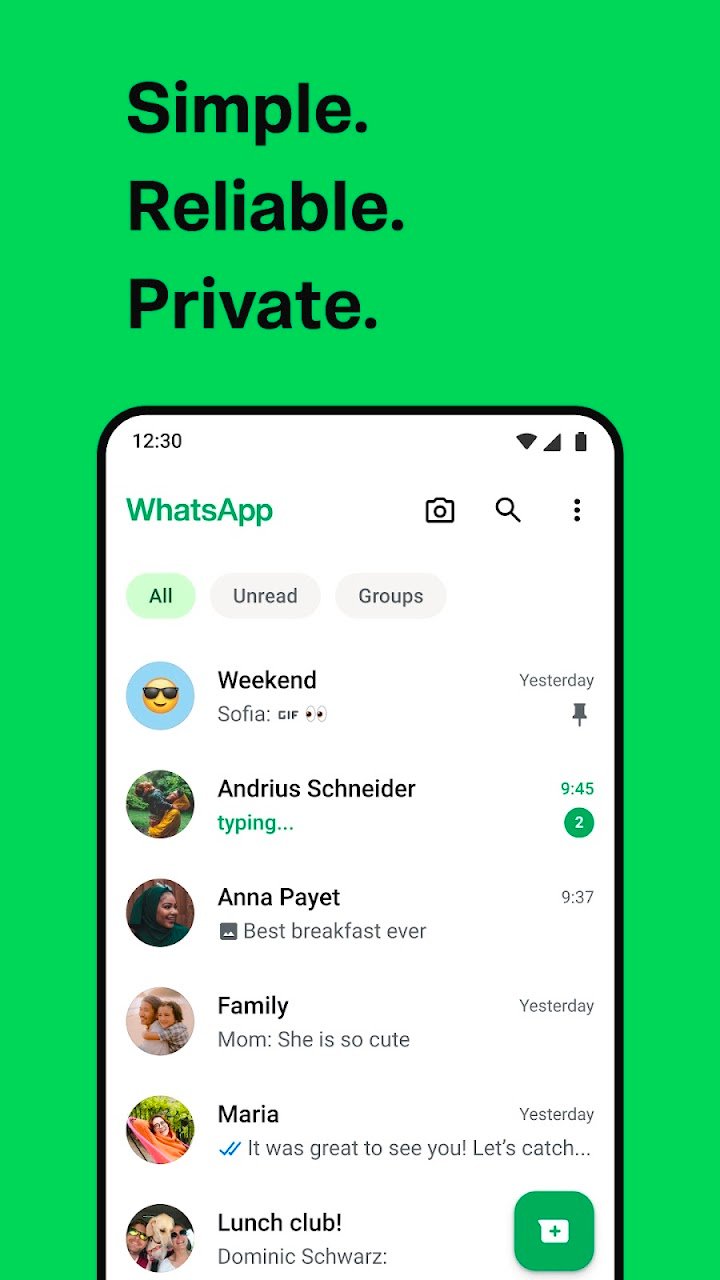
WhatsApp from Meta is a free messaging and video calling app used by over 2 billion people in more than 180 countries. It is simple, reliable and private, and it works across mobile and desktop even on slow connections, with no subscription fees.
What makes WhatsApp unusual among messaging apps is how little it asks of you. There is no username, no password and no separate account to create — just your phone number. That simplicity is the main reason it spread so widely, and also the reason most people never look at its settings. The defaults are sensible, but a handful of them are worth changing deliberately, particularly around backups, group invitations and read receipts.
This guide explains how the end-to-end encryption actually works and where its limits are, what each major feature does, how calls and group chats behave in practice, what Status is and who can see it, how the desktop and Wear OS versions fit in, which settings are worth changing on day one, and which parts of the app vary by region. It is written for new users and for people who have used WhatsApp for years without opening anything beyond the chat list.
WhatsApp at a Glance
| Feature | Details |
|---|---|
| Type | Messaging and calling app with end-to-end encryption |
| Developer | Meta |
| Cost | Free to use, with no subscription fee |
| Account requirement | A phone number — no usernames or separate logins |
| Encryption | End-to-end encrypted messages and calls by default |
| Group calls | Voice and video calls with up to 32 people |
| Group chats | End-to-end encrypted, supporting messages, photos, videos and documents |
| Status | Text, photo, video and GIF updates that disappear after 24 hours |
| Platforms | Android, iOS, desktop, web and Wear OS |
| Data costs | Mobile data charges may apply depending on your provider |
How the Encryption Actually Works
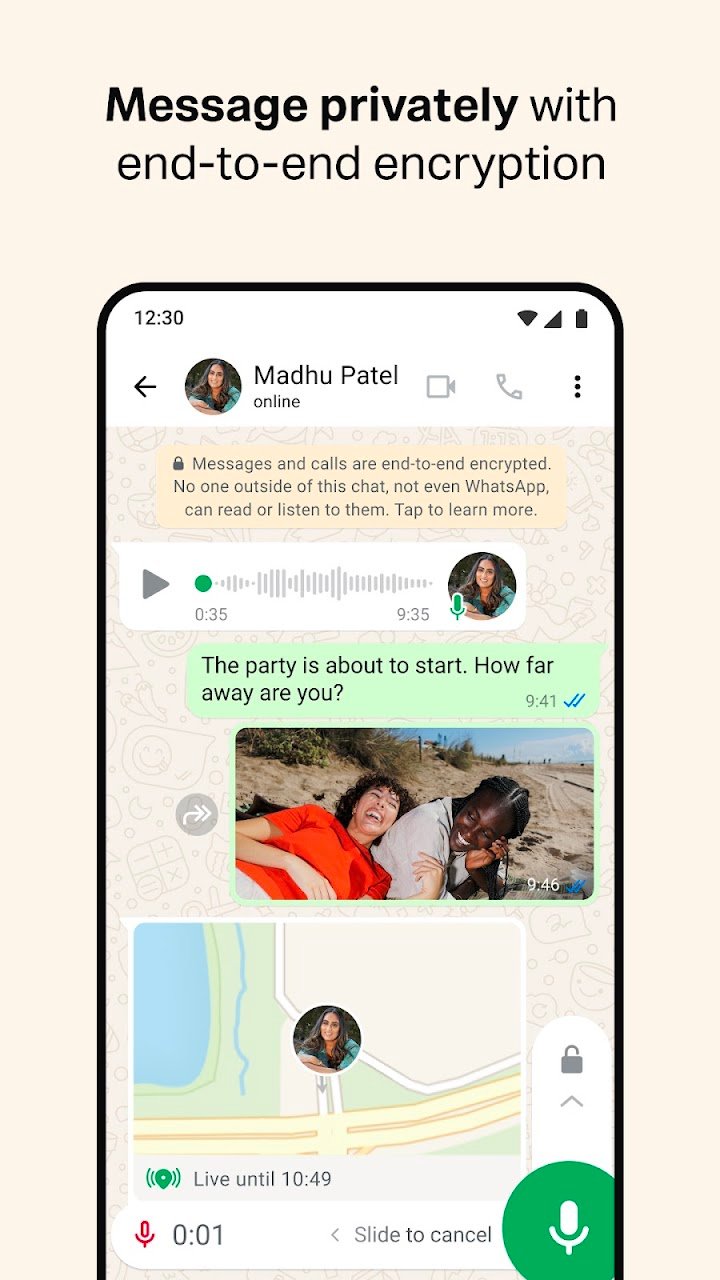
Your personal messages and calls to friends and family are end-to-end encrypted. That means no one outside your chats — not even WhatsApp — can read or listen to them. This is the single most important thing to understand about the app, and it is also the part most often misunderstood.
End-to-end encryption works by generating keys on each device. When you send a message, it is encrypted on your phone and can only be decrypted by the recipient's device. The server in between relays ciphertext it cannot read.
What End-to-End Encryption Does Cover
| Covered | Not Covered by Default |
|---|---|
| One-to-one messages | Cloud backups stored with your phone's platform provider |
| Group chat messages | Metadata such as who you message and when |
| Voice and video calls | Content you forward or screenshot to other apps |
| Photos, videos and documents sent in chats | Information you choose to share publicly or with third-party apps |
| Status updates (encrypted in transit to recipients) | Anything a recipient chooses to save or screen-record |
The backup caveat is the one that matters most. Chat backups saved to a cloud service are not end-to-end encrypted unless you specifically enable encrypted backups. If your backup is stored unencrypted, the protection that applies to live messages does not extend to that copy. Enabling encrypted backups, with a password you keep safely, is the single highest-value privacy step in the app.
The second caveat is the human one. Encryption protects messages in transit and at rest on the server. It cannot stop a recipient from taking a screenshot, saving a photo, or showing their phone to someone else. Encryption is a technical guarantee about interception, not a guarantee about the person you are talking to.
WhatsApp shows a security notice in each chat where you can verify the encryption with a contact, and it notifies you if a contact's security code changes. That notification is worth paying attention to if you have unusually sensitive conversations, though for most everyday use it is simply informational.
Getting Started: A Phone Number Is the Whole Account
All you need is your phone number — no usernames or logins. You install the app, verify the number, and WhatsApp checks which of your contacts are already using it so you can start messaging immediately.
A few practical points about this model:
- Your phone number is your identity. Changing your number requires migrating your account, and losing access to your number can make account recovery difficult.
- Verification is usually by SMS. In some regions, WhatsApp uses SMS verification to authenticate your phone number and secure transactions.
- Contacts are matched from your address book. That is convenient, but it means the app needs access to your contacts to suggest people you know. You can manage this in your device's permission settings.
- Two-step verification is worth enabling. It adds a PIN on top of the SMS code, which significantly reduces the risk of someone taking over your account if they obtain your number.
If you use WhatsApp on desktop or web, you link it to your phone as a companion device. Your phone does not need to be online for the desktop version to work in the current implementation, but the account remains tied to your phone number.
Messaging Features in Practice
WhatsApp's core messaging is straightforward, but several features are worth knowing about because they change how you use the app day to day.
| Feature | What It Does |
|---|---|
| Text messages | Standard chat with delivery and read indicators |
| Voice messages | Recorded audio clips you can send instead of typing |
| Photos, videos and documents | File sharing within chats, subject to size limits |
| Replies and reactions | Reply to specific messages or react with an emoji |
| Disappearing messages | Messages that vanish automatically after a set period |
| Starred messages | Bookmark messages to find them later |
| Live location | Share your location with a chat for a limited period |
| Channels | One-way broadcasts from organisations and creators you follow |
Voice Messages
Recording a voice message is often faster than typing, and it is one of the most-used features in the app. The practical tip is to keep them short — a 30-second voice note gets listened to, a four-minute one often does not. If you need to send something long, consider a voice call instead.
Disappearing Messages
Disappearing messages can be turned on per chat, so messages vanish automatically after a set period. This is useful for conversations you do not want lingering, but it is not a substitute for good judgment: a recipient can still screenshot or forward a message before it disappears.
Important: disappearing messages apply to new messages in that chat. It is worth checking the setting is on for the chats where you actually want it, since it is per conversation rather than global.
Live Location
You can share your location with only those in your individual or group chat, and stop sharing at any time. Live location is genuinely useful for meeting up or for letting someone know you are on your way. It is shared only with the chat you choose, and it stops automatically when the timer you set runs out.
Practical rule: use live location with a timer rather than leaving it open-ended. Sharing with a specific chat for a specific duration is the intended use, and it limits the consequences if you forget.
Voice and Video Calls
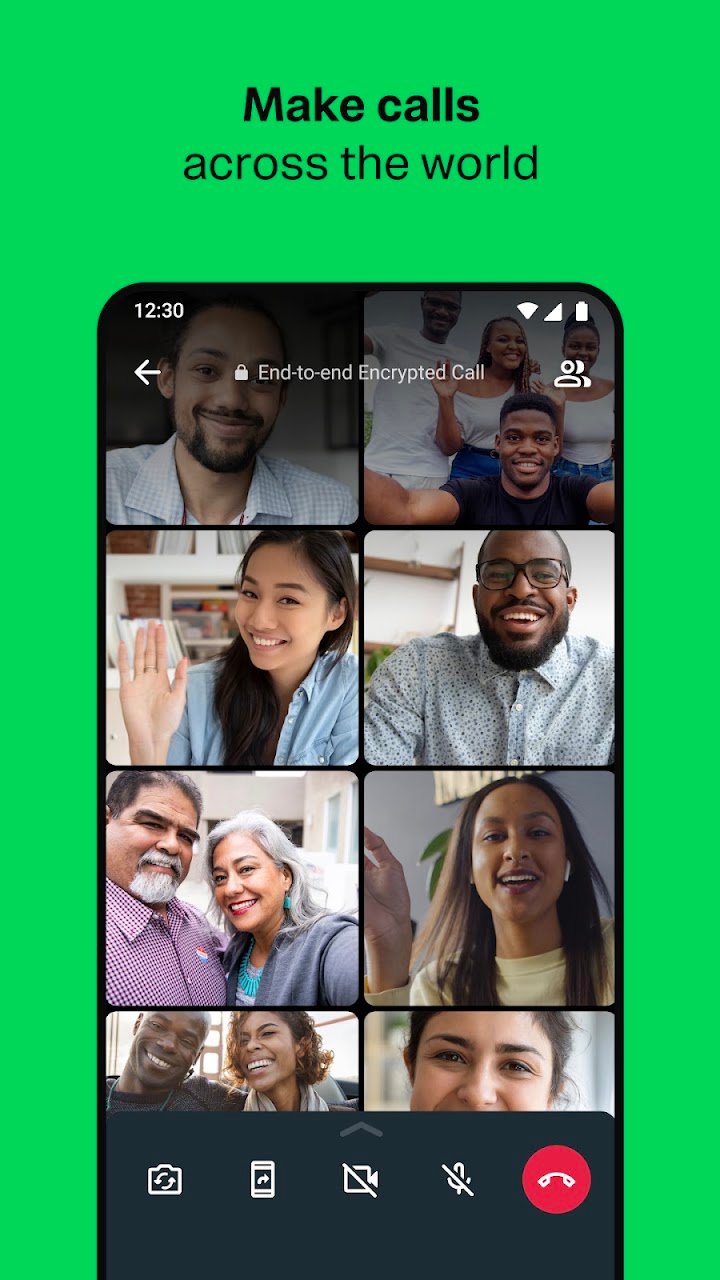
WhatsApp supports secure voice and video calls with up to 32 people, for free. Calls work across mobile devices using your phone's internet service, and they are designed to remain usable on slow connections.
| Aspect | Details |
|---|---|
| Group call size | Up to 32 participants |
| Call type | Voice and video, end-to-end encrypted |
| Network requirement | Works over internet connections, including slow ones |
| Cost | No subscription fee; data charges from your provider may apply |
| International calls | Use data rather than standard call minutes |
The practical point about calls is that they use your internet connection rather than your phone's standard call minutes. On Wi-Fi, that means international calls cost nothing beyond your data. On mobile data, a long video call can use a noticeable amount, so it is worth checking your plan.
For group calls, the same advice applies as with any multi-person call: a stable Wi-Fi connection is preferable, and quality degrades with weak signal and older devices. On a slow connection, turning off video and using voice only is usually the difference between a usable call and a broken one.
Group Chats
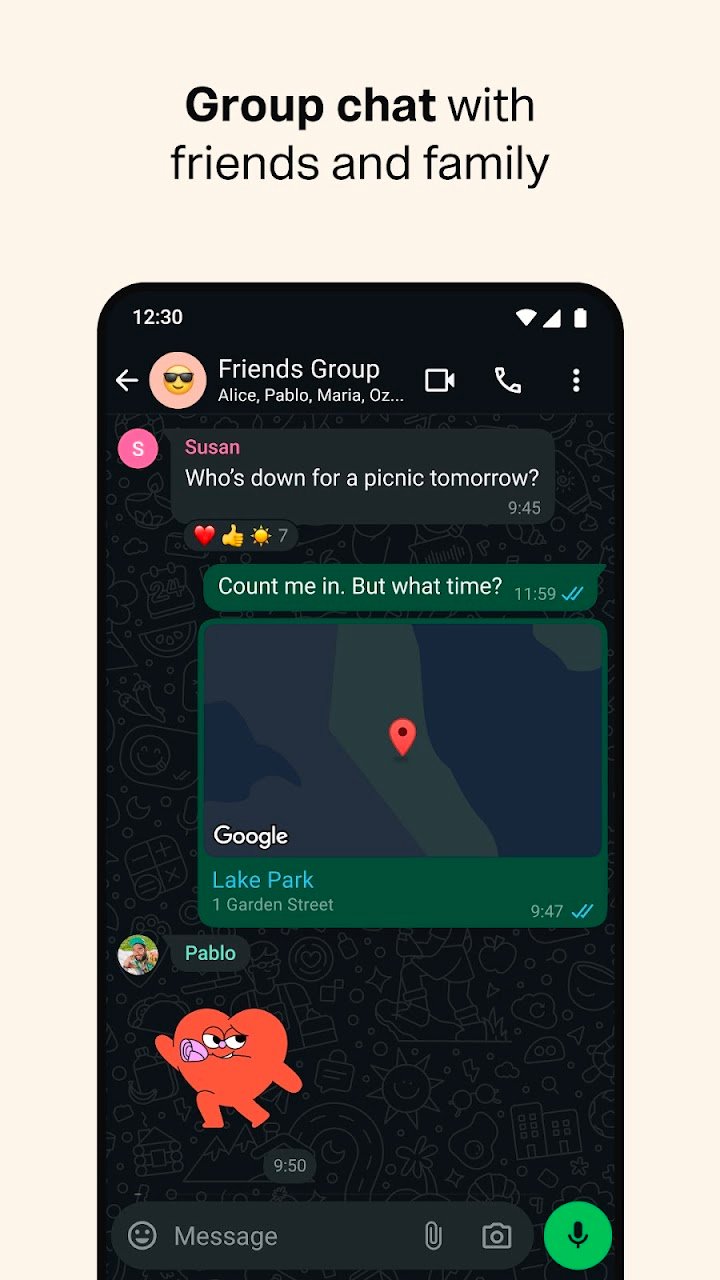
Group chats let you stay in touch with friends and family, and they are end-to-end encrypted. You can share messages, photos, videos and documents across mobile and desktop.
| Group Feature | What It Does |
|---|---|
| Group size | Supports large groups, with admin controls |
| Admin controls | Restrict who can send messages, change group info or add members |
| Invitation settings | Control who can add you to groups |
| Group calls | Start a voice or video call from within the group |
| Shared media | All photos, links and documents are collected in one place |
The setting that matters most in groups is "who can add me to groups." By default, anyone with your number can add you to a group, which is how most group spam happens. Changing this to "My contacts" or "My contacts except…" significantly reduces unwanted group invitations, and admins can still send you an invite you choose to accept.
For large groups, admin controls are worth enabling: restrict who can change group settings, and consider requiring admin approval for new members. A large group with no controls is difficult to moderate once it becomes noisy.
Status: 24-Hour Updates
Status lets you share text, photos, video and GIF updates that disappear after 24 hours. You can choose to share status posts with all your contacts or just selected ones.
| Aspect | Details |
|---|---|
| Lifespan | 24 hours |
| Content types | Text, photos, video and GIFs |
| Audience | All contacts, or a custom selection |
| Viewers | Can see who has viewed each update |
| Interaction | Viewers can reply directly to a Status update |
Status audience is worth setting deliberately. It is easy to leave it on "all contacts" and forget, which means business contacts, distant acquaintances and family all see the same updates. Choosing a selected audience makes Status feel more like sharing with friends and less like broadcasting to everyone in your address book.
Status is not a group chat. Replies to a Status update open a private conversation with that person, not a public comment. This is a useful detail — it means replying to someone's Status is a direct message, which is worth knowing before you send one.
Desktop, Web and Wear OS
WhatsApp works across mobile and desktop, and it supports Wear OS for continuing conversations, replying to messages and taking calls from your wrist, with tiles and complications for quick access to chats and voice messages.
| Platform | Strengths | Limitations |
|---|---|---|
| Phone | Full feature set, primary account device | Small screen for long conversations |
| Desktop app | Comfortable typing, file sharing, multitasking | Linked to your phone account |
| Web browser | No installation, useful on shared computers | Must sign out on shared machines |
| Wear OS | Quick replies, calls, voice messages from the wrist | Limited for long messages or media |
The desktop version is where WhatsApp becomes genuinely productive. Typing on a keyboard, dragging in files and keeping chats visible alongside work is a very different experience from using the phone. The main caution is on shared computers: if you link WhatsApp Web on a machine you do not control, sign out afterwards rather than leaving the session active.
Wear OS is a convenience, not a replacement. It is useful for replying quickly to a message or taking a call without reaching for your phone. It is not where you will manage group chats or send documents.
Privacy and Security Settings Worth Changing
WhatsApp's defaults are reasonable, but a small number of settings account for most of the difference between a comfortable account and an uncomfortable one.
| Setting | What It Controls | Recommended For |
|---|---|---|
| Two-step verification | A PIN in addition to the SMS code | Everyone — enable first |
| Encrypted backups | Whether cloud backups are end-to-end encrypted | Everyone with chat backups enabled |
| Who can add me to groups | Controls group invitations | Set to contacts rather than everyone |
| Read receipts | Whether others see blue ticks when you read messages | Turn off if you prefer not to reveal reading |
| Last seen and online | Whether others see your activity | Restrict to contacts |
| Profile photo and about | Who can see your profile information | Restrict to contacts |
| Status audience | Who sees your 24-hour updates | Set deliberately, not left on all contacts |
| Disappearing messages default | Default timer for new chats | Useful for privacy-conscious users |
| Blocked contacts | People who cannot call or message you | Use freely — blocking is silent |
The read receipts trade-off is worth understanding. Turning off read receipts also means you cannot see other people's read receipts. It is a mutual setting, not a one-way one, so it is a choice rather than an advantage.
Blocking is silent. A blocked contact is not notified, cannot call or message you, and cannot see your profile updates. It is a much lower-friction option than most people assume, and it is the correct response to persistent unwanted contact.
Safety and Scams
WhatsApp's encryption protects the channel, not the people using it. Most problems on the platform come from social engineering rather than technical interception, and the patterns are consistent enough to describe.
- "Wrong number" messages that turn into friendly conversation and eventually a request — a well-known scam pattern.
- Family emergency impersonation — someone claiming to be a relative in trouble and asking for money.
- Verification code requests — never share a code you receive. A code you were not expecting means someone is trying to take over your account.
- Investment and job offers arriving from unknown numbers, often promising unusually good returns.
- Group invitations from strangers — the main reason the group invitation setting matters.
The reliable rule: if a message creates urgency and asks you to do something — send money, share a code, click a link, install something — verify it through a different channel before acting. Call the person on a number you already have, not the one in the message.
Tips for Getting More Out of WhatsApp
- Enable two-step verification first. Before anything else on this list.
- Turn on encrypted backups. Live messages are protected by default; backups are not, unless you enable it.
- Restrict who can add you to groups. It is the single most effective change for reducing spam.
- Set Status audience deliberately. All contacts is rarely the right answer.
- Use live location with a timer. Share for a set period rather than indefinitely.
- Star important messages. It is the fastest way to find a address, booking reference or instruction later.
- Keep voice messages short. Under 30 seconds is listened to; several minutes often is not.
- Use the desktop version for anything involving files. Dragging and dropping is far easier than sharing from a phone.
- Sign out of WhatsApp Web on shared computers. Do not leave a session active on a machine you do not control.
- Mute noisy groups rather than leaving them. You keep access without the notifications.
- Block freely. Blocking is silent, and it is the correct response to persistent unwanted contact.
Who Should Use WhatsApp?
WhatsApp is a general-purpose messaging app rather than a niche one, so the useful question is how it compares with the alternatives you already use.
WhatsApp is a strong fit if you:
- Message friends and family across countries and platforms
- Want end-to-end encryption without setting anything up
- Make international voice and video calls over data
- Use group chats for family, work or community coordination
- Want a single app that covers messaging, calls and file sharing
It may not be the right choice if you:
- Want a messaging app that does not require a phone number
- Need messaging that works fully independently of a phone account
- Prefer apps built around usernames and discoverability
- Need enterprise-grade compliance and audit features
- Are uncomfortable with metadata collection, even when message content is encrypted
The last point is worth stating honestly: end-to-end encryption protects message content, but WhatsApp still processes metadata — who you talk to, when, and how often — to operate the service. Users who need to minimise metadata, not just content exposure, should understand that distinction before relying on any messaging app.
Frequently Asked Questions
Is WhatsApp free?
Yes. WhatsApp is free to use with no subscription fees. Mobile data charges from your provider may apply, particularly for calls and media sharing on mobile data.
Are my messages really end-to-end encrypted?
Yes. Messages and calls with friends and family are end-to-end encrypted by default, which means no one outside your chats, including WhatsApp, can read or listen to them. The main exception is cloud backups, which are not end-to-end encrypted unless you specifically enable encrypted backups.
What is not covered by end-to-end encryption?
Cloud backups (unless encrypted), metadata such as who you message and when, and anything a recipient chooses to screenshot, save or forward. Encryption protects the channel, not the people on either end.
Do I need a username or password?
No. All you need is your phone number. There are no usernames or logins. In some regions, WhatsApp uses SMS verification to authenticate your phone number.
How many people can join a group call?
Voice and video calls support up to 32 participants, and calls are end-to-end encrypted.
Do calls use my phone's minutes?
No. Calls use your internet connection rather than standard call minutes, which is why international calls over Wi-Fi cost nothing beyond your data. Data charges may apply when using mobile data.
Can I use WhatsApp on my computer?
Yes. WhatsApp is available as a desktop app and in a web browser, linked to your phone's account. Sign out on any shared computer after use.
Does WhatsApp work on a smartwatch?
Yes, on Wear OS. You can continue conversations, reply to messages and take calls from your wrist, and use tiles and complications for quick access to chats and voice messages.
What is Status?
Status lets you share text, photos, video and GIF updates that disappear after 24 hours. You can share with all your contacts or only selected ones, and you can see who has viewed each update.
Can I stop people adding me to groups?
Yes. In privacy settings you can change who can add you to groups to "My contacts" or "My contacts except…", which significantly reduces unwanted group invitations.
Is disappearing messages the same as Status?
No. Disappearing messages is a per-chat setting that removes messages after a set period. Status is a 24-hour update shared with your chosen audience.
What happens when I block someone?
The person is not notified and cannot call or message you, and cannot see your profile updates. Blocking is silent and is the appropriate response to persistent unwanted contact.
Can WhatsApp read my messages?
No. Message content is end-to-end encrypted and cannot be read by WhatsApp. The service still processes metadata needed to operate, and cloud backups are only encrypted if you enable that option.
Is WhatsApp safe from scams?
Encryption protects the channel, not the people using it. Most scams rely on social engineering — impersonation, fake emergencies, verification code requests and investment offers. Verify unusual requests through a different channel before acting, and never share a verification code you receive.
Do I need to keep my phone on for WhatsApp Web to work?
WhatsApp Web and desktop work as linked companion devices in the current implementation, so your phone does not need to be online for them to function. Your account remains tied to your phone number.
How do I change my phone number?
WhatsApp includes a change-number option in account settings that migrates your account, chats and groups to the new number. Do this before you lose access to the old number, since account recovery afterwards is difficult.
Why can't I see a feature mentioned here?
Feature availability varies by region, platform and app version. Some features, such as certain payment or business options, are only available in specific countries.
Download and Availability
WhatsApp is a third-party application developed by Meta and distributed through the official app stores. Feature availability, including payment features and some business tools, varies by country and region. Data charges may apply depending on your mobile provider.
If you have feedback or questions, the app's own support route is WhatsApp > Settings > Help > Contact Us.
Official Resources:
- Official Website: WhatsApp Official Website
- Terms of Service: WhatsApp Terms of Service
- Privacy and Encryption: Messaging Privately
- Security: WhatsApp Safety and Security
Final Thoughts
WhatsApp's strength is that it asks almost nothing of you and still delivers strong defaults. A phone number is the whole account, messages are end-to-end encrypted from the first conversation, and the app works across phone, desktop and watch without a subscription.
The gaps are narrower than the marketing implies, and they are all fixable. Backups are not encrypted unless you enable it. Anyone with your number can add you to a group unless you change that setting. Status goes to all contacts unless you choose otherwise. Two-step verification is off until you turn it on. Those four changes take a few minutes and close the difference between the default experience and a properly configured one.
Beyond settings, the useful habit is scepticism about urgency. Encryption protects messages in transit, not against a message that convinces you to send money or share a code. Verify unusual requests through a channel you already trust, and the app becomes both private and safe in the way that actually matters.
Voyanta is an independent app discovery platform and is not affiliated with or endorsed by Meta or WhatsApp. All WhatsApp and Meta trademarks and related intellectual property belong to their respective owners.